Getting Started with EarnPilot
Learn the basics of EarnPilot in just a few steps. This walkthrough shows you how to create your account, track your first completed batch, review your earnings, view your saved entries, and manage your subscription and credits.
Create Your Account
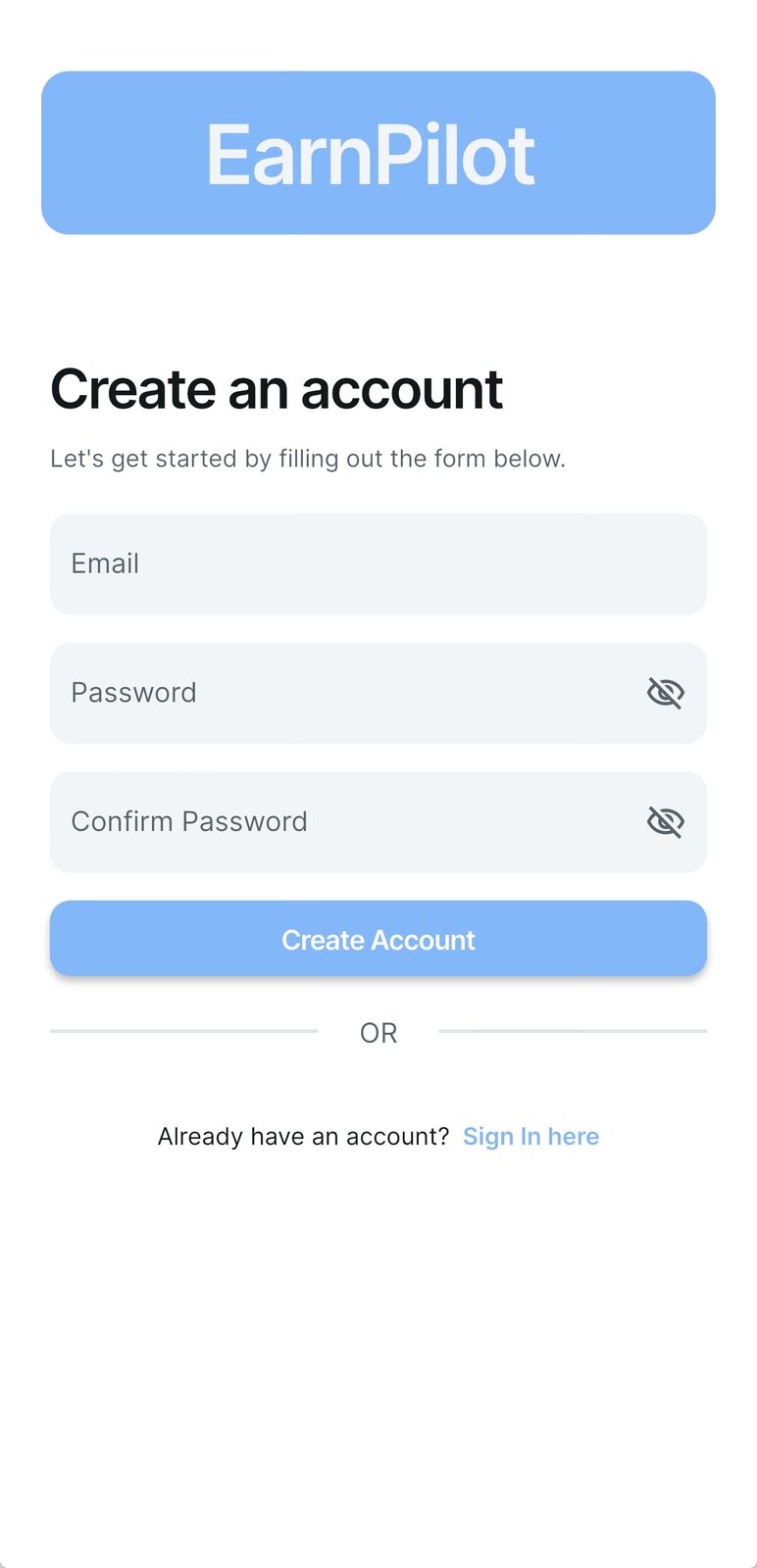
Start by creating your EarnPilot account. Enter your email address, create a password, confirm your password, and tap Create Account.
If you already have an EarnPilot account, use the Sign In option instead.
Sign In
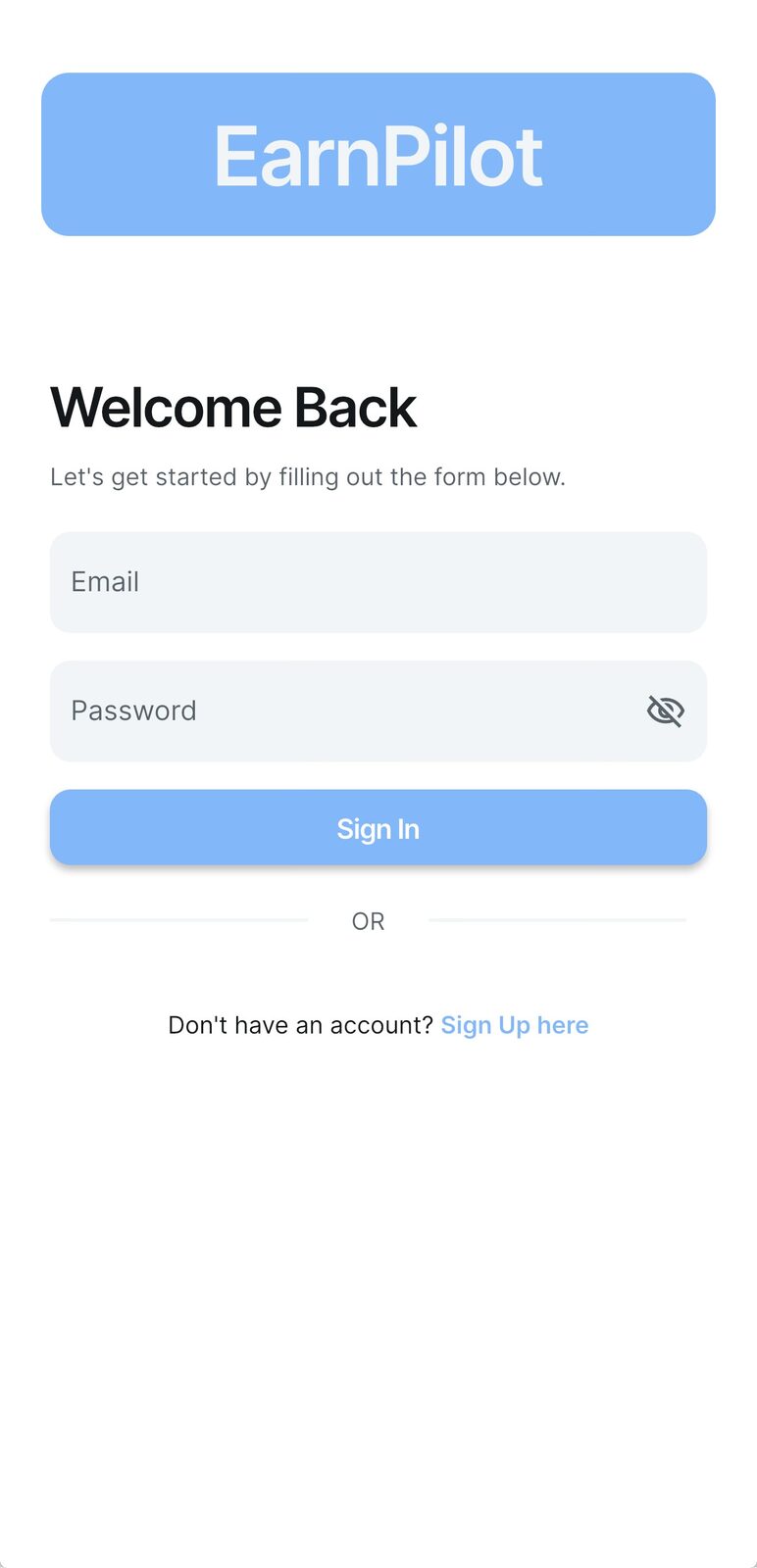
Returning users can enter their email address and password and tap Sign In to access their EarnPilot account.
If you do not have an account yet, select Sign Up here to create one.
Your Today Overview
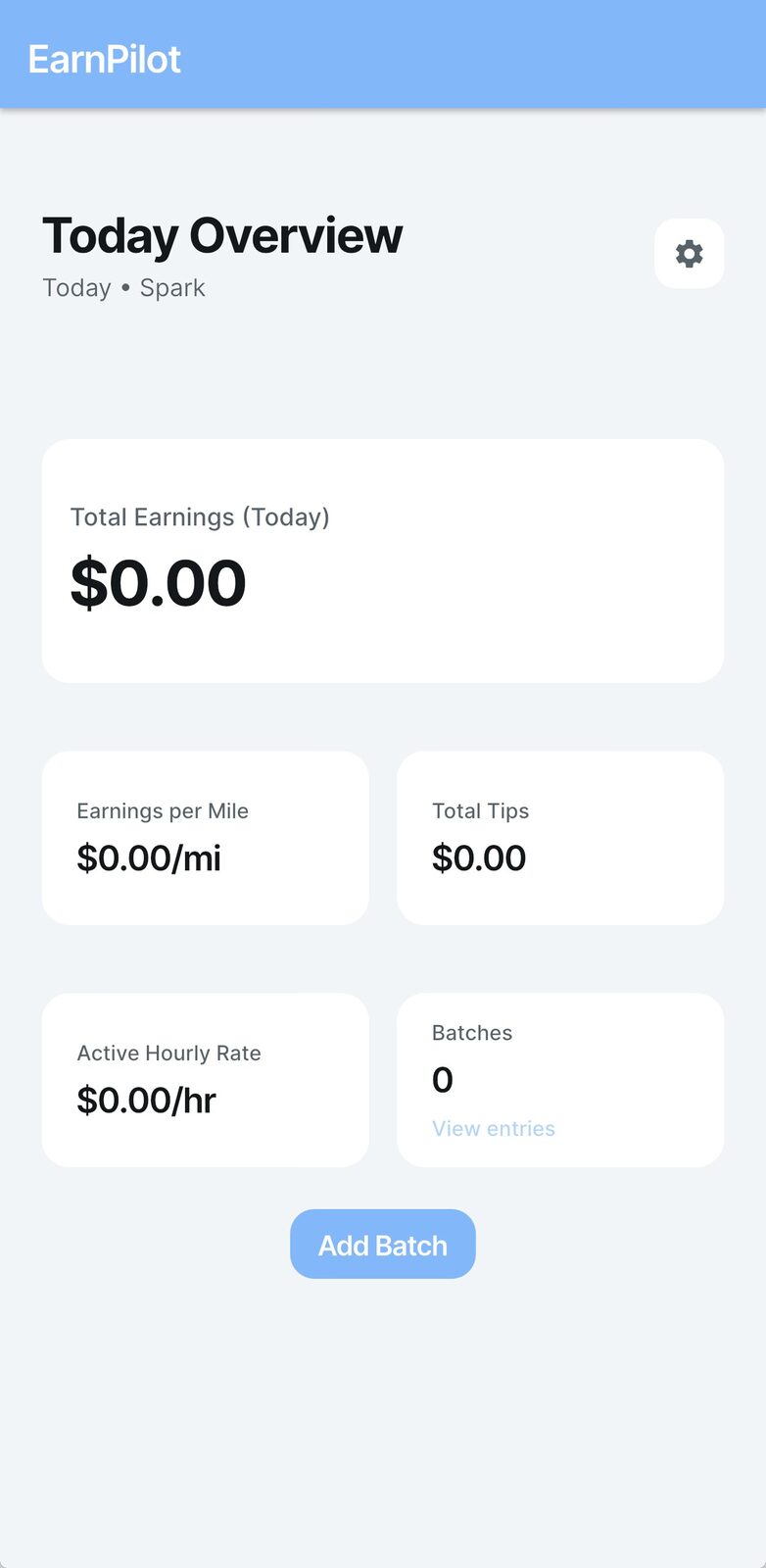
After signing in, the Today Overview gives you a quick view of your current workday.
- Total Earnings
- Earnings per Mile
- Total Tips
- Active Hourly Rate
- Number of saved Batches
When you are ready to record a completed batch, tap Add Batch.
Add Your Batch Details
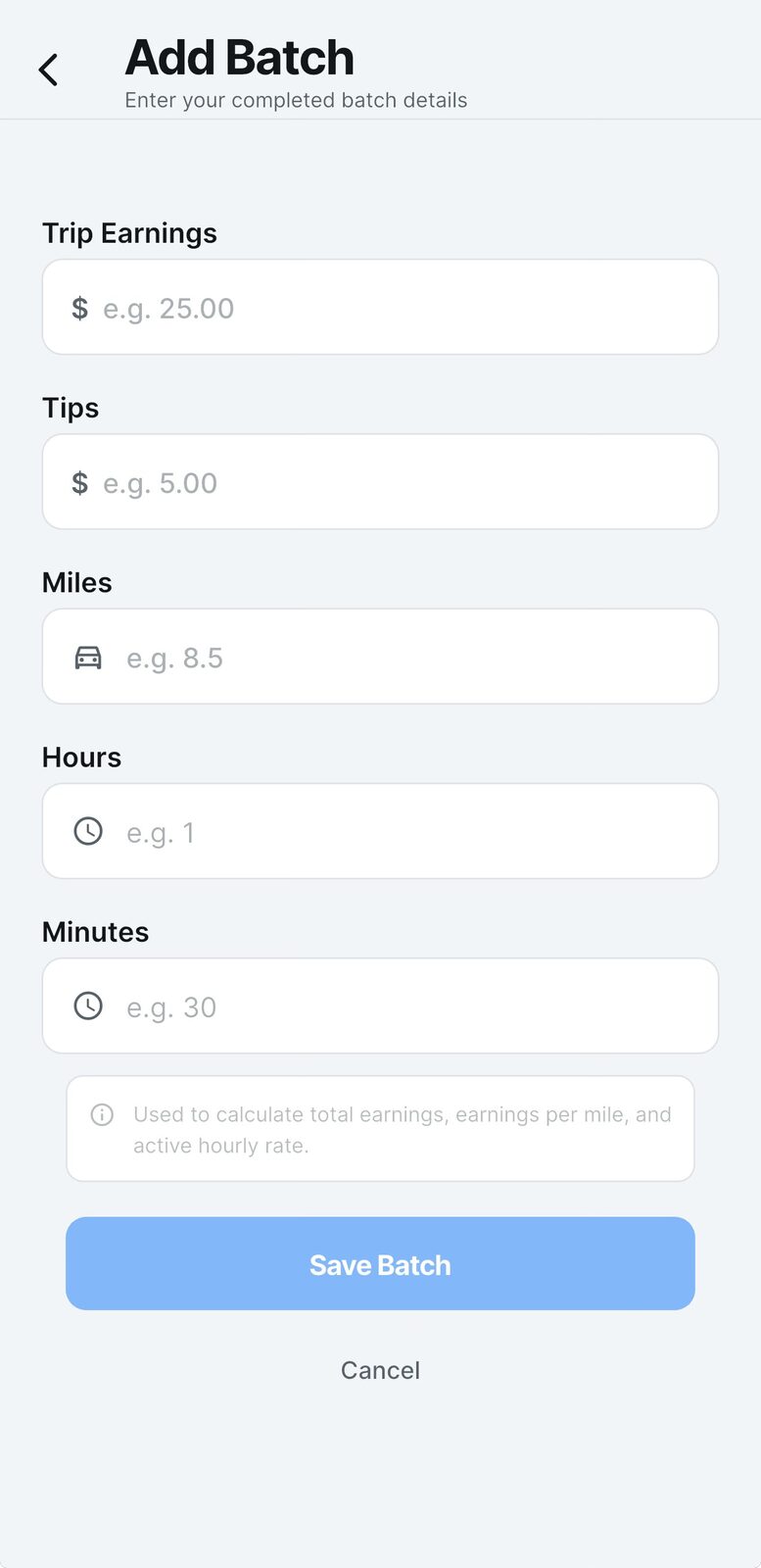
Enter the information from your completed batch.
- Trip Earnings
- Tips
- Miles
- Hours
- Minutes
EarnPilot uses this information to calculate your earnings totals, earnings per mile, and active hourly rate.
When the information is complete, tap Save Batch.
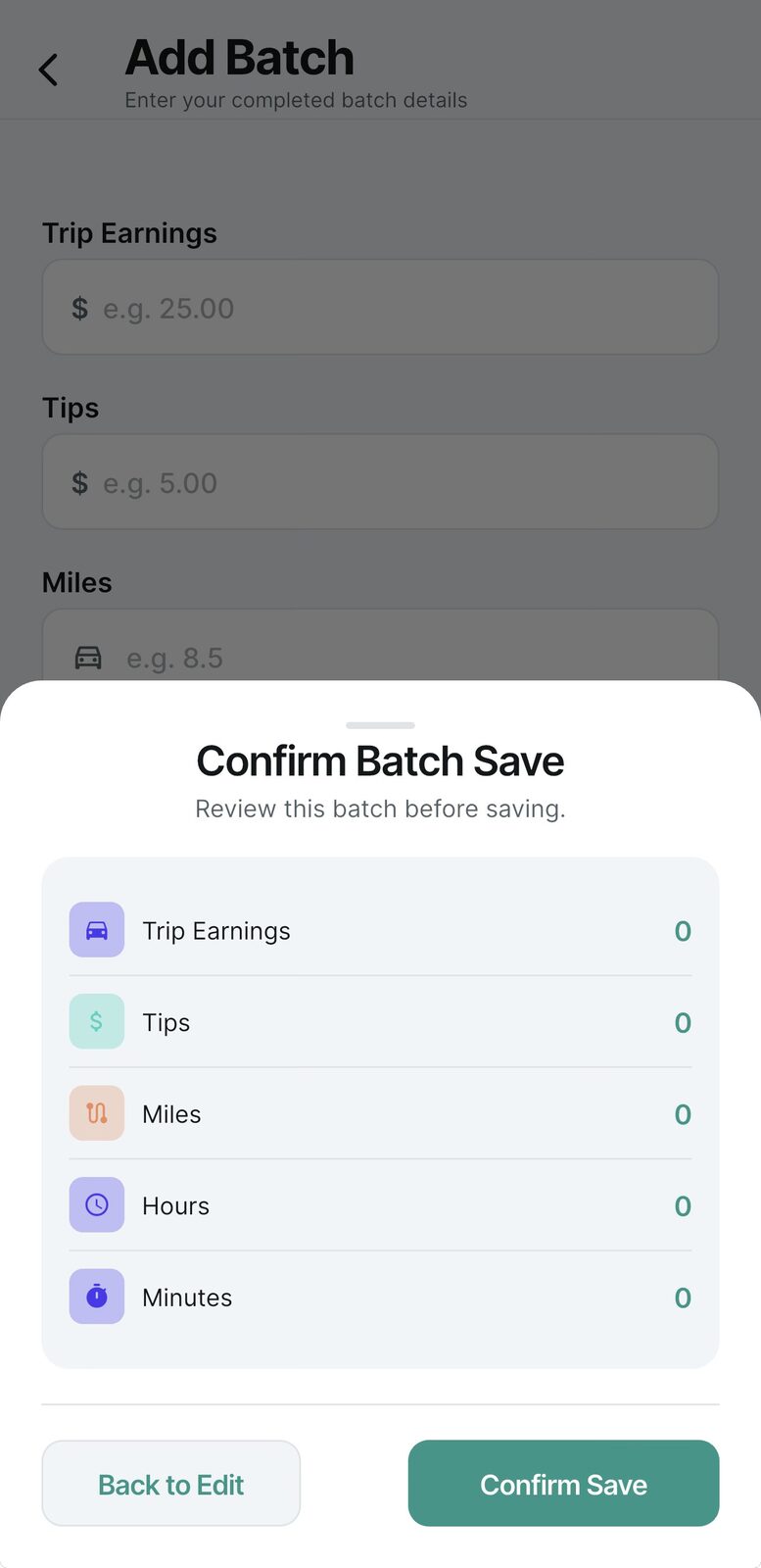
Confirm Your Batch
Before EarnPilot saves the batch, review the information shown on the confirmation screen.
Check your trip earnings, tips, miles, hours, and minutes before confirming.
If something needs to be corrected, choose Back to Edit. If everything is correct, tap Confirm Save.
View Your Entries
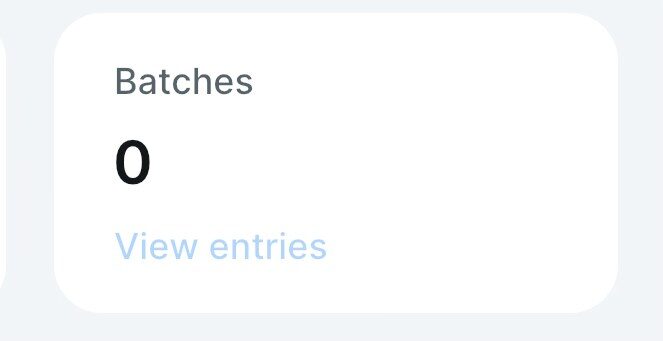
After saving batches, you can review them through the View Entries option on your Today Overview.
This gives you quick access to the work you have already recorded.
Review Your Saved Performance
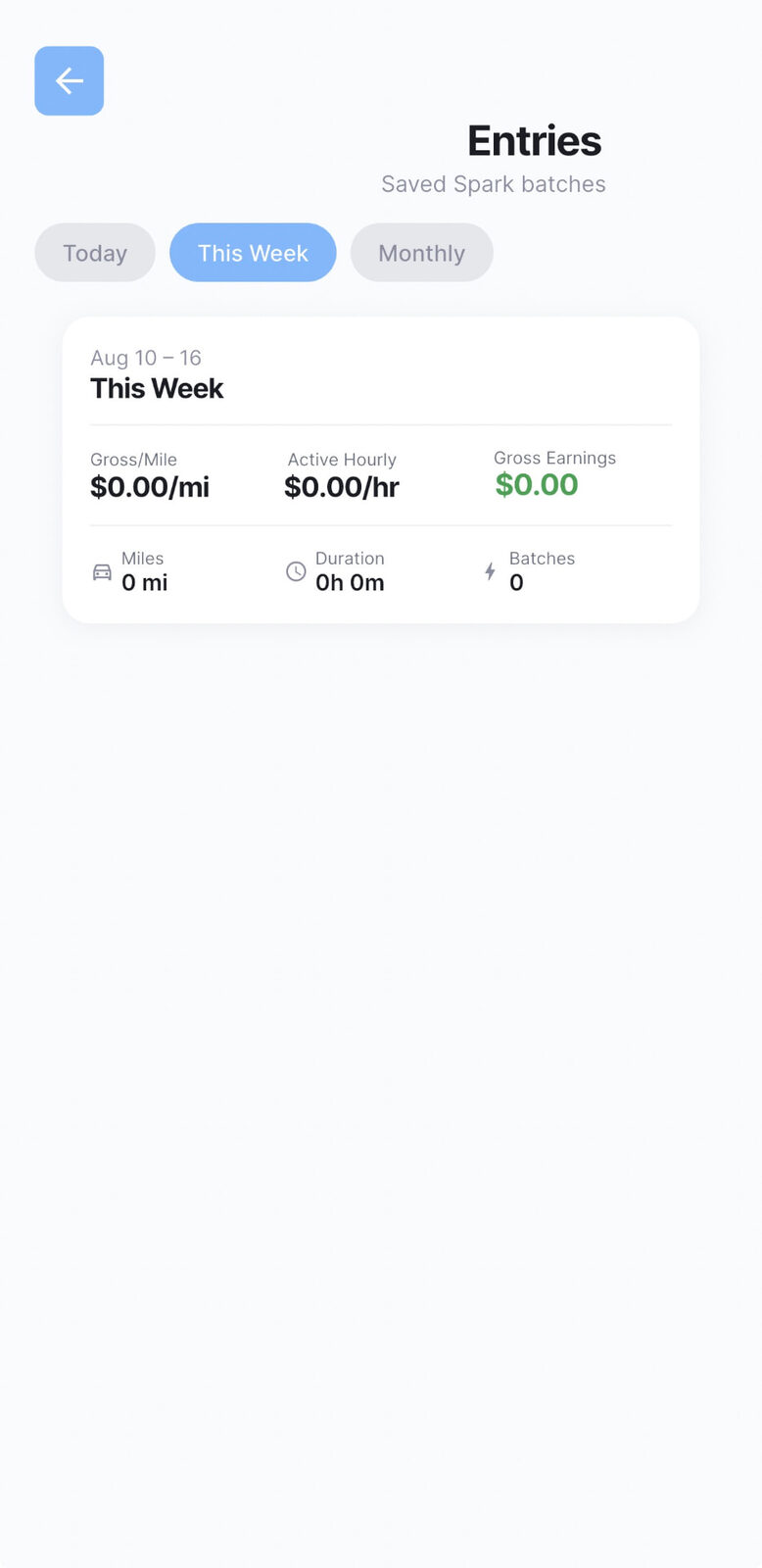
The Entries area helps you review your saved work across different time periods.
You can move between:
- Today
- This Week
- Monthly
The summary can display:
- Gross earnings
- Gross earnings per mile
- Active hourly rate
- Miles
- Duration
- Batch count
This gives you a simple way to understand how your gig work is performing over time.
Manage EarnPilot from Settings
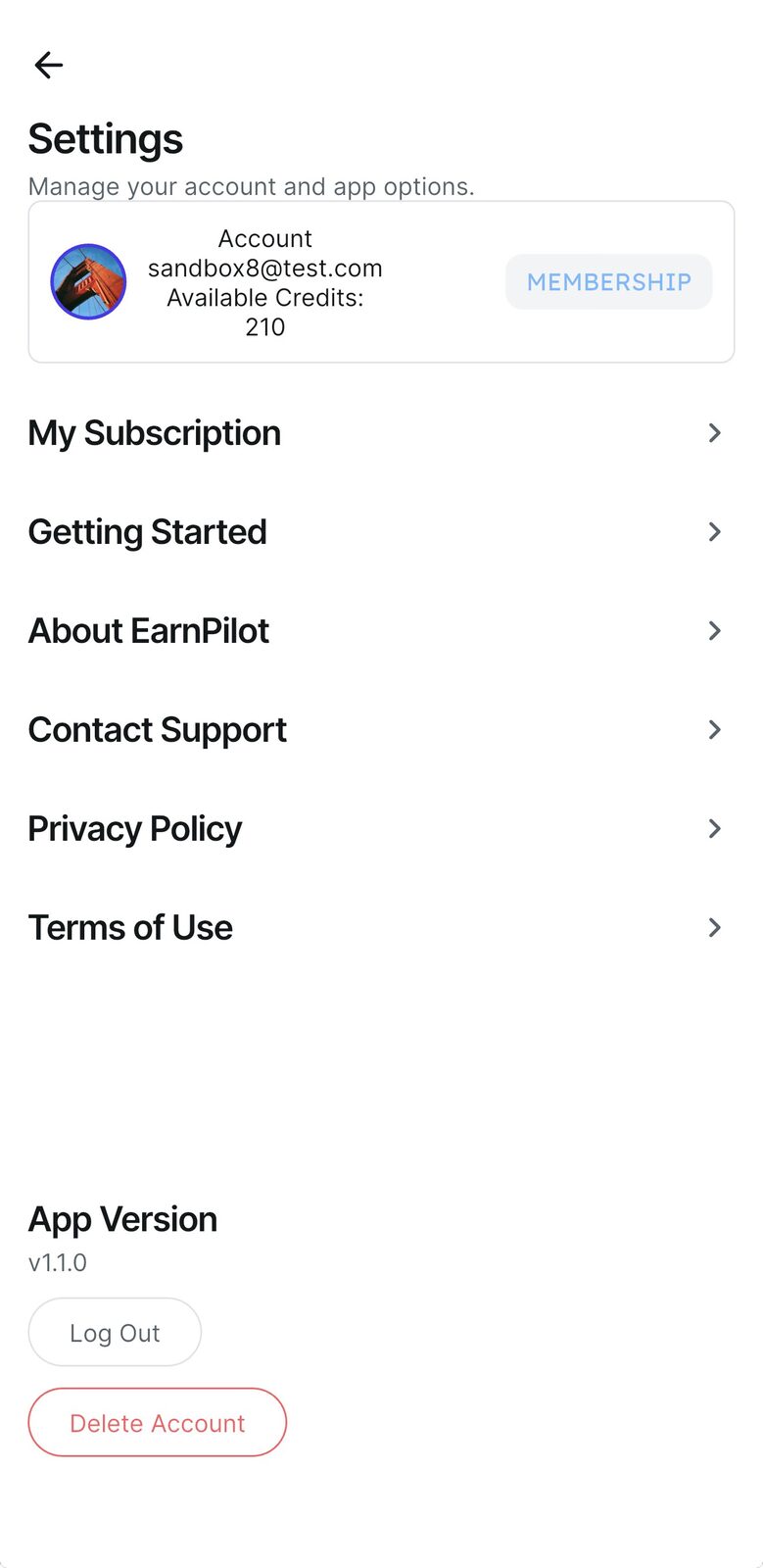
The Settings page gives you access to your account and important EarnPilot resources.
- My Subscription
- Getting Started
- About EarnPilot
- Contact Support
- Privacy Policy
- Terms of Use
- App Version
- Log Out
- Delete Account
Your current plan and available credit balance may also be displayed near the top of the Settings page.
Manage Your Subscription and Credits
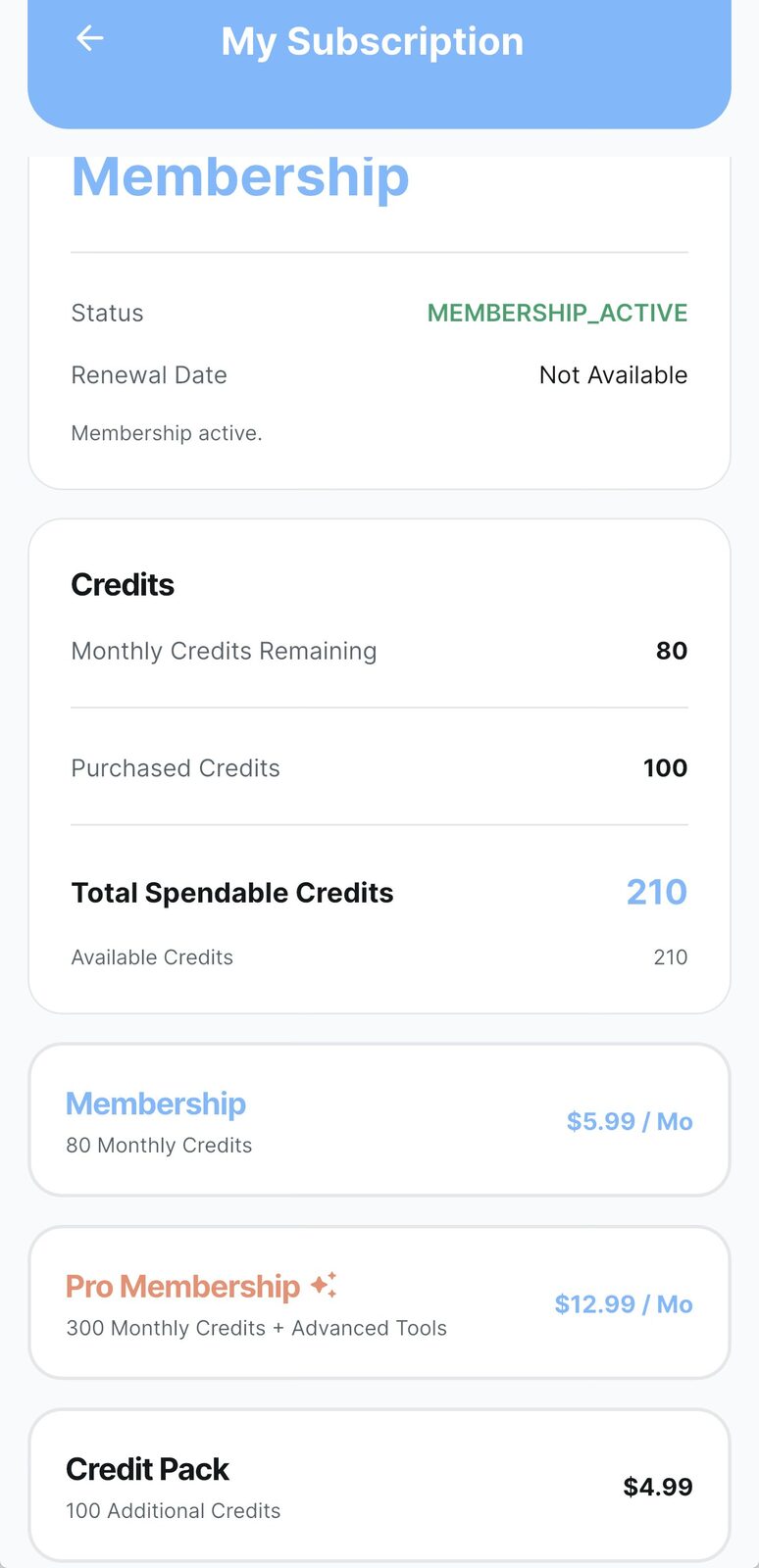
The My Subscription page shows your current membership status and EarnPilot credit balances.
- Monthly Credits Remaining — credits included with your current Membership or Pro subscription.
- Purchased Credits — credits obtained through eligible Credit Pack purchases.
- Total Spendable Credits — the total number of credits currently available for qualifying EarnPilot actions.
- Available Credits — the current authoritative spendable balance associated with your account.
Current options displayed:
- Membership — 80 monthly credits, $5.99 per month.
- Pro Membership — 300 monthly credits, $12.99 per month.
- Credit Pack — 100 additional credits, $4.99 one-time purchase.
Plan availability, pricing, and purchase terms are also shown before purchase through the applicable app store.
Choose Your Language
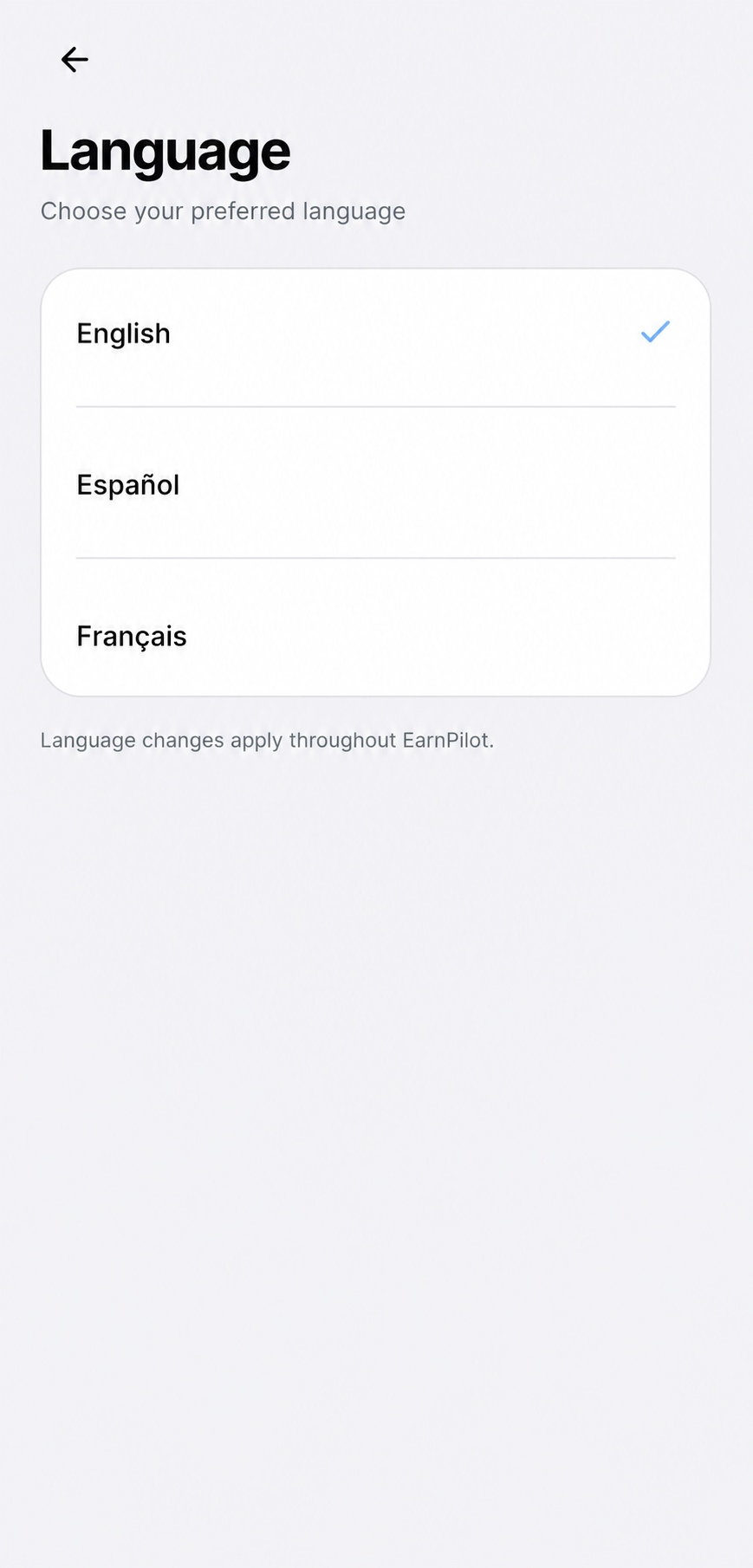
From Settings, you can choose the language you prefer to use inside EarnPilot.
- English
- Español
- Français
Language changes apply throughout EarnPilot, so screens, labels and app messages follow the language you select.
Where applicable, the EarnPilot website experience can also follow your chosen language.
You're Ready to Use EarnPilot
You can now create an account, record completed batches, review your performance, and manage your subscription and credits.
If you need help, use Contact Support from the EarnPilot Settings page.